Keyboards: Hardware, Remapping, and Programming from macOS
I’ve had wrist pain for years, and after a long journey I discovered it’s actually a shoulder problem. The fix? Split keyboards positioned about three feet apart. This post covers everything: why I need the split, the hardware I use, key remapping with Karabiner, and programming the RK Royal Kludge RK-S70 from macOS. RK’s software is Windows-only, so I ended up writing my own command-line driver.
Keyboards can be a huge rabbit hole. If you just want a nice ergo keyboard for your desk, get the Logitech K860. If you just want one for your bag, get the iClever BK06. Everything below is the rabbit hole.
AI-augmented, roughly 80% AI (what this means)
I love AI, and I use it on posts like this one partly to get better at using it. The percent is a rough guess: after rounds of prompting, rewriting and editing, it's very hard to say which words came from whom.
- Why I need split keyboards
- My keyboards
- Key Remapping with Karabiner Elements
- Programming the RK-S70 from macOS
- Cross-platform alternatives I tried
Why I need split keyboards

I’ve had wrist pain for years — but it turns out it was never actually a wrist problem. It’s a shoulder problem. I can’t externally rotate my shoulders, which means a normal keyboard forces my arms into a position that wrecks my wrists within hours. My wrists are happiest when the keyboard halves are about three feet apart. That sounds extreme, but it’s what my shoulders need.
The backstory
- 1996: High school - played countless hours of Street Fighter II. The damage was done early.
- 2010-2021: Decade of flare-ups. Wrists would hurt for a week or so, I’d wear a brace, and they’d be fine again. Repeat.
- 2022: Complete wrist failure after 24 hours of magic practice. Took months to recover. Miserable - couldn’t do magic, which was extra painful since I was already in a COVID funk.
- Discovery: Zero shoulder external rotation, grip strength at 15 lbs
- Solution: Year of physical therapy focused on shoulders
- Result: Grip strength now 135 lbs, wrists functional with proper keyboard setup
- Key insight: The split isn’t just comfort - it’s necessary for my shoulder mechanics
My keyboards
Home: RK Royal Kludge RK-S70
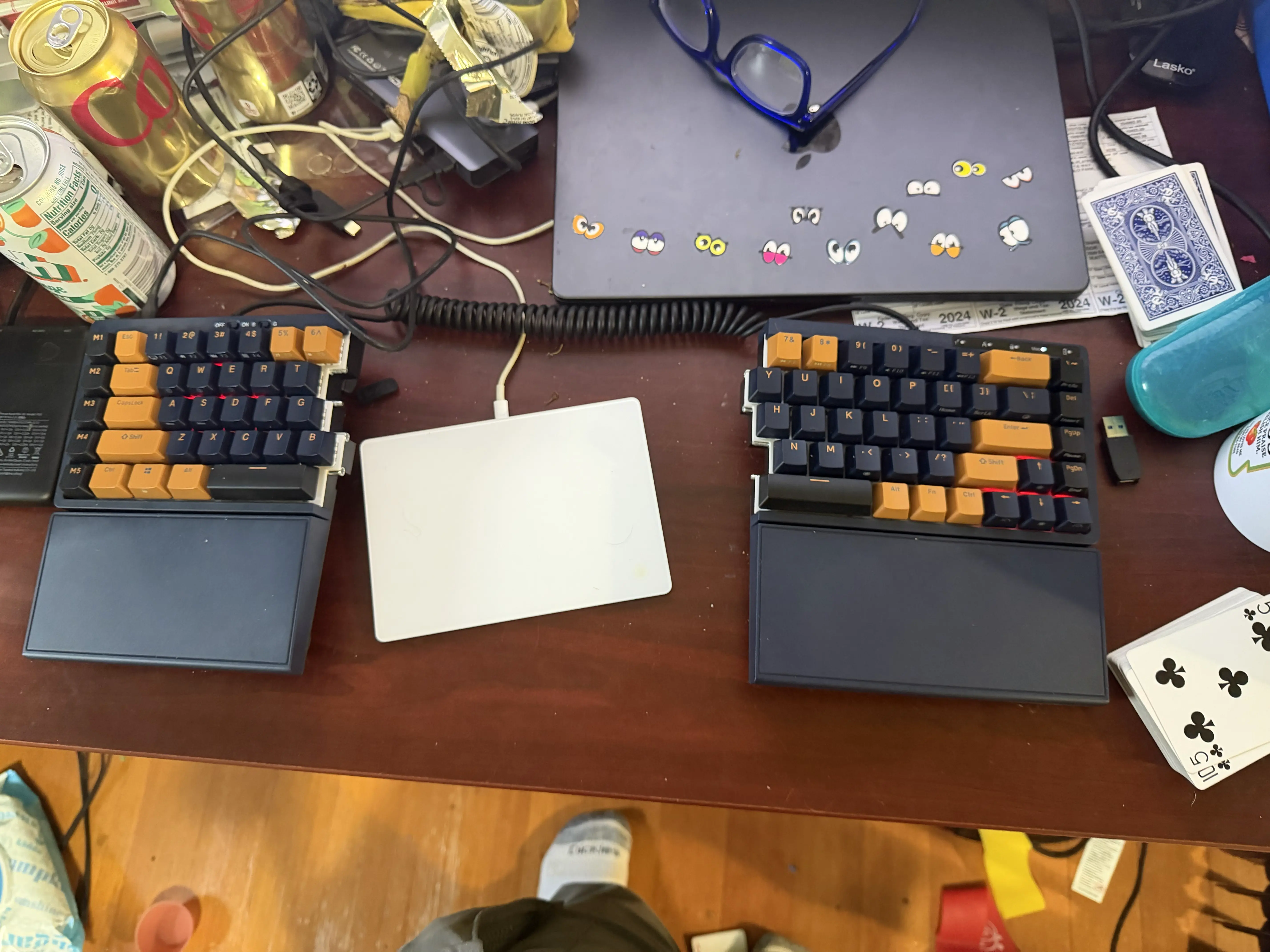
RK ROYAL KLUDGE Ergonomic Mechanical - Full-featured mechanical keyboard with hot-swappable switches (meaning you can replace individual keys without soldering). This is my daily driver at home. Ergonomic split design, tri-mode connectivity (Bluetooth/2.4GHz/USB-C), and 5 programmable macro keys (M1-M5) down the left side. I program those from a terminal now; see below.

Coffee shop: Dual folding Bluetooth keyboards

Two folding Bluetooth keyboards synced via Karabiner Elements. I position them 3+ feet apart to allow proper shoulder rotation. Portable and flexible.

I’ve bought 9 of these iClever folding keyboards - they’re compact, reliable, and let me position my hands exactly where my shoulders need them.
Recommendation for most people
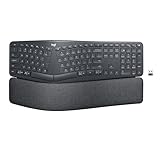
Logitech Ergo K860 - If you liked the classic MS Sculpt or Surface Sculpt keyboard, this is the modern version. Bluetooth, comfortable split design, good palm rest. This is what I’d recommend for most people with wrist issues.
Other keyboards I tried
- MS Sculpt - The classic ergo keyboard. Bought 6 spares before they discontinued it. Great keyboard, but they stopped making it.
- Kinesis Freestyle (Quiet) - First true wide-split keyboard. Adjustable width, Cherry Red linear switches (quiet, smooth). Wired connection between halves, USB-A only. Note: I tried the Kinesis Advantage but dislike ortholinear layouts.
On mechanical keyboards
I deliberately avoided mechanical keyboards for years. The Kinesis Freestyle forced my hand - it only comes in mechanical. Turns out linear keys (Cherry Red) are much better than clicky for me. Eventually I gave up resisting and embraced them - hence the RK ROYAL KLUDGE at home.
Simple switch guide (if you’re trying to figure it out):
- Want clickity? Get brown switches
- Want quiet (linear, no click)? Get red switches
- Otherwise, prepare to go down a very long rabbit hole
Key Remapping with Karabiner Elements
Karabiner Elements is the Swiss army knife of keyboard customization on macOS. I use it for everything from basic key swaps to syncing two separate keyboards into one unified input.
Multi-keyboard sync
My coffee shop setup uses two folding Bluetooth keyboards positioned 3+ feet apart. Karabiner treats them as a single keyboard — I can chord across both (e.g., hold shift on the left, type on the right). This is the magic that makes the dual-keyboard setup work.
My Karabiner config
Full Karabiner config — the complete set of remappings I use across all my keyboards.
Programming the RK-S70 from macOS
The problem: Windows-only software
Royal Kludge’s configuration software only runs on Windows. There’s no macOS version and RK has confirmed they have no plans to make one. The official software handles:
- Key remapping
- RGB lighting customization
- Macro programming
- Firmware updates
You can download it from rkgamingstore.com/pages/software.
My solution: kludge-cli
Kludge Knight already reverse-engineered the remap protocol and runs it in Chrome over WebHID. I wanted something I could script, so I ported its remap path to a small Python CLI: kludge-cli. It’s open source (GPL, like the code it builds on).
uv tool install git+https://github.com/idvorkin/kludge-cli
rkkb list                                  # is the keyboard visible?
rkkb map m1=esc m3=rctrl+pagedown          # dry run: shows what it would send
rkkb map m1=esc m3=rctrl+pagedown --write  # send it
rkkb reset --write                         # back to factory
The encoder reproduces USB captures of RK’s own Windows software byte for byte, so I trust it with my keyboard. It only does remapping: no macros (nobody has reverse-engineered RK’s macro protocol) and no lighting. I’ve only tested it on my RK-S70.
The keyboard has to be on a USB cable for programming. The mapping is stored in the keyboard, so it keeps working over 2.4GHz and Bluetooth afterward.
What my side keys do
The factory side keys send Ctrl+A, Ctrl+C and Ctrl+X, which are useless on a Mac. I turned the column into a dictation pad for Wispr Flow:
| Key | Sends | Does |
|---|---|---|
| M1 | Esc | Escape, which also cancels a Wispr recording |
| M2 | Right Cmd + F18 | Wispr undo (bind it in Wispr’s Settings → Shortcuts) |
| M3 | Right Ctrl + PageDown | Wispr hands-free toggle |
| M4 | Enter | Enter |
| M5 | Right Cmd + Right Option | Wispr push-to-talk: hold to talk |
The trick is sending combos no app will grab. My first try at undo sent Ctrl+Z, which the terminal swallowed before Wispr ever saw it.
Gotchas on macOS
- Input Monitoring. The terminal running
rkkbneeds Input Monitoring permission (System Settings → Privacy & Security). If the terminal got updated while it was running, restart it; mine kept being denied until I did. - Karabiner. Karabiner holds keyboards exclusively, which blocks anything else from opening them.
rkkbtells Karabiner to skip the keyboard for the few seconds of a write and then restores my config exactly.
Fallback: UTM with a Windows VM
Before the CLI, I ran RK’s own software in a Windows VM. It still works, and it’s the only way to program macros:
- Install UTM, a free QEMU frontend, from its site or the Mac App Store.
- Download a Windows 11 ARM ISO from Microsoft’s Insider Preview program. You can run it unactivated; you just get a watermark.
- Create a VM: choose Virtualize (not Emulate), Windows, at least 4GB RAM, 2 cores and a 32GB+ disk.
- Enable USB Sharing in the VM settings, connect the keyboard by USB-C cable, and attach it to the VM when UTM asks. Your Mac loses that keyboard while it’s attached, so keep another one handy.
- Inside the VM, install RK’s software from rkgamingstore.com/pages/software.
| Feature | Description |
|---|---|
| Key Mapping | Remap any key to any other key or function |
| RGB Lighting | Per-key colors, effects (breathing, wave, static, rainbow), brightness, speed |
| Macros | Record keystroke sequences triggered by a single key (M1-M5 keys) |
| Firmware | Flash firmware updates from RK |
Cross-platform alternatives I tried
Before going the VM route, I tried these macOS-native options:
- Kludge Knight — Browser-based tool with S70 support (the dev owns one). Uses WebHID in Chrome/Edge. It didn’t work for me the first time, but its protocol is solid: kludge-cli is a port of it.
- Rangoli — Open-source native app. Effectively abandoned (last commit 2023), doesn’t support the S70.
- RK Web App — Official browser-based tool from RK. Unclear if it supports the S70.
- Raw QEMU — Possible but USB passthrough on Apple Silicon is problematic. UTM wraps QEMU with the right entitlements and a GUI — just use UTM.
- VirtualBox — Doesn’t support Apple Silicon well. No USB passthrough on ARM.