Igor's OSX Tools
I pretty much use mac exclusively. I have 3 at work, and a mac mini at home, and I’m an automation nerd so I try to have everything auto install/synchronize across the machines. On the mac, I’m either in chrome/edge, Cursor (the new VS.code), the terminal (I use iterm), capcut (video editor), zoom, or the few super handy utilities I list below.
Apps
Alfred - The everything launcher/doer!
I LOVE Alfred. I can do all sorts of stuff
- Snippets - Helpful snippets
- Clipboard - Browse clipboard history
- Often I copy multiple things and paste them back in order later
3rd Party Plugins:
- Emoji Snippets ; to get emoji
; emoji to look for - GitFred -
gmy(search my repos)
- ChatGPT
- System Settings
- Screen Shots
- clipls - View Clipboard Images
- Window Navigator
- Thumbnail navigation (use fnav)
2nd Party - E.g., Igor wrote it.
My personal plugin, Igor Tools, is a thin layer over my CLIs:
idv- Search my blogss- Capture Screen Shoty- Drive yabaia/af- Drive AeroSpace, and jump to any of its windowstadd/tlist- Add and list OmniFocus taskszz- Lock and sleep
Productivity
- Omnifocus - Task Manager
- My handy cli
- Flow - A Pomodoro Timer
- Write back sessions to calendar
- Name sessions
- Nice UX
- The terminal
- I do crazy stuff in there.
- Nerd Fonts
Quality of life utility
- Hand Mirror - Preview Your Camera
- Ice Manage the menu bar
- (The new Bartender)
- Alt Tab - Windows-like alt tab
- Menubar - Show next meeting in the menu bar
- mpv+iina - Video Players
- 1password - Awesome Password Manager
- Karabiner Elements - Make my keyboard perfect
- Even does crazy stuff like let me use 2 keyboards at once, chording across keyboards!#$!
- Screencasting specific
Yabai - Tiling, with sweaters

Yabai tiles my windows so I never drag one around by hand. I run my fork, which has fixes for macOS 27, and drive it with y.py, my CLI that also generates the Alfred y commands. y number puts a numbered badge on every window, then y 3 jumps to window 3 (or y 3 close, y 3 half). AeroSpace is the other tiling manager I keep around: more powerful, but not stable yet. Borders highlights the focused window.
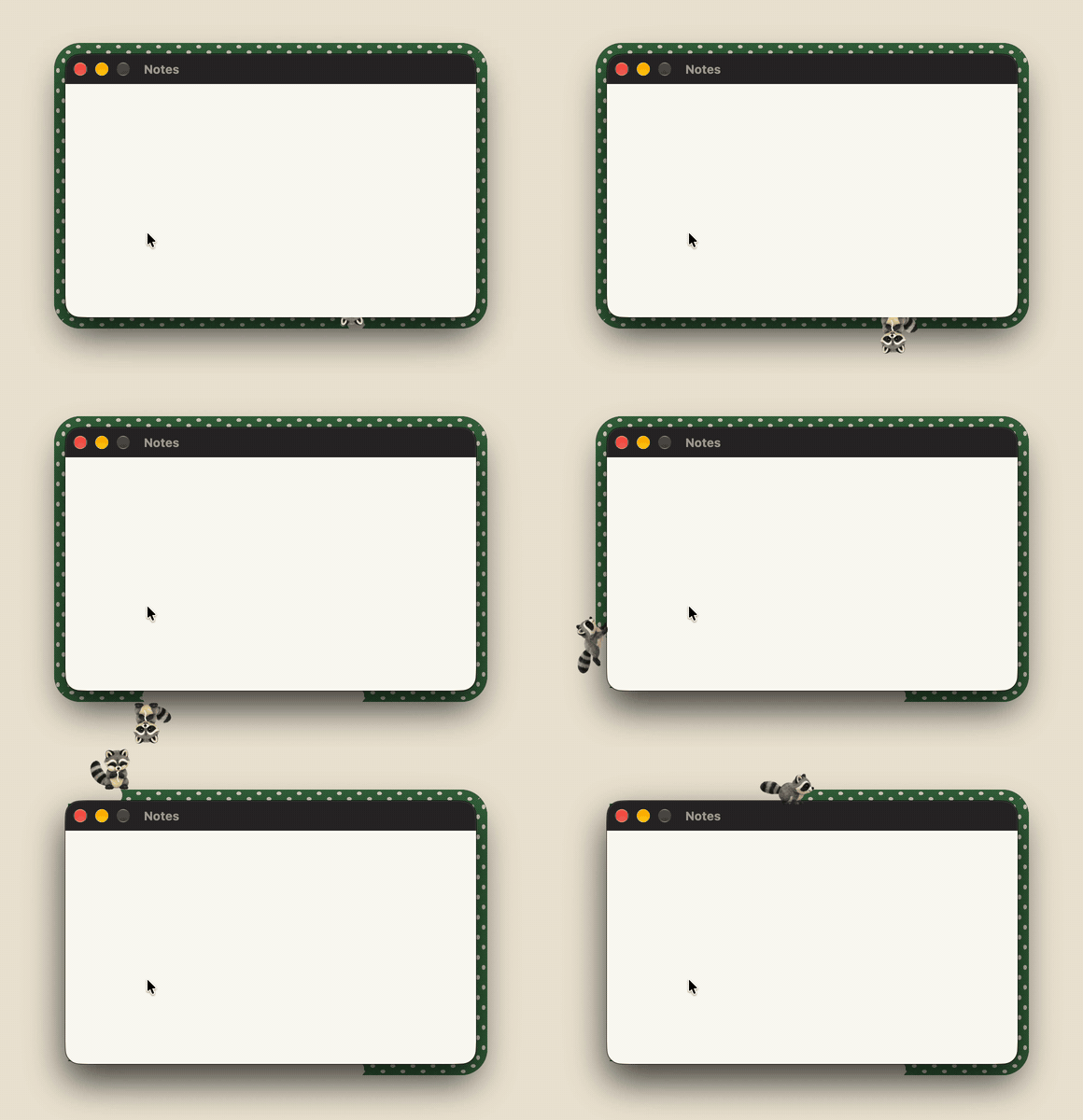
I saw this cute thing called Window Sweaters, Sara Gordić’s menu-bar app that knits a border around each window in its app’s colors. Of course I forked it and added raccoons: every few minutes a little raccoon runs a lap around the window I’m in, and depending on its appetite, eats the sweater as it goes. I also added Focused Window Only, so only the window I’m using wears one.
Browser Tab Helper - No more duplicate tabs
Since I’m customizing everything anyway, one of my irritants is browsers: I always end up with duplicate tabs. So I made browser-tab-helper, a Chrome/Edge extension. Open a page that’s already open and a card asks what to do, one key each:
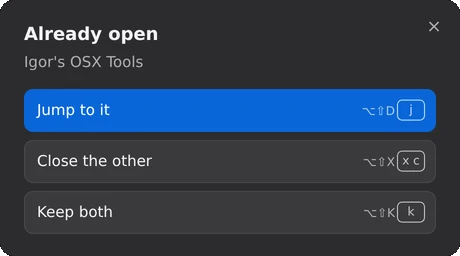
It also lists every tab on one page (by window, kind or tab group) with drag and drop and undo, saves and restores tab layouts as JSON, and tells my local tools which page is in front. What’s great about this helper is that anything that’s a problem, I can implement. If something bugs me, I build it in.
Screen Resolutions and Display Settings
OSX has several built-in ways to manage screen resolutions and displays:
- Default Settings: System Settings -> Displays
- Choose between Default or Scaled resolution
- In Scaled mode, you can select from several preset options
- Advanced Resolution Options:
- Hold Option key while clicking “Scaled” to see all available resolutions
- This reveals additional resolutions your display supports
-
Command Line Tools:
# List all available resolutions system_profiler SPDisplaysDataType # Get current resolution system_profiler SPDisplaysDataType | grep Resolution - Third-Party Tools:
- BetterDisplay - Force custom resolutions, manage display settings, and override system limitations
- Allows forcing any resolution your display can handle
- Supports HiDPI and scaled resolutions
- Can override system limitations for refresh rates
- Free and open source
- I use my custom zsh aliases to quickly fix and check display settings:
# From my zsh_include.sh
alias lg-fix='betterdisplaycli set --resolution=3840x2160 --refreshRate=59.94Hz'
alias lg-show='betterdisplaycli get --resolution --refreshRate'
- BetterDisplay - Force custom resolutions, manage display settings, and override system limitations
- EDID Override Method for 4K@120Hz:
- Apple Silicon Macs can be tricked into supporting 4K@120Hz over HDMI using EDID overrides
- This method works with compatible USB-C to HDMI 2.1 adapters
- Steps to enable:
- Install BetterDisplay and AW EDID Editor
- Export your display’s EDID binary using BetterDisplay
- Edit the EDID in AW EDID Editor:
- Change EDID format to V1.4 (change Revision from 3 to 4)
- Change Video Interface bits to DisplayPort (0101)
- Upload and apply the modified EDID in BetterDisplay
- Set your resolution to 4K@120Hz using BetterDisplay
- For some adapters, you may need to update firmware (e.g., Cable Matters adapter)
- I’ve saved a working EDID configuration in my Settings repository
- More details in this MacRumors forum thread
- Testing Your Display:
- Use TestUFO Refresh Rate Test to verify your display’s refresh rate and resolution
- For accurate results:
- Close other applications and browser tabs
- Run the test for at least 30 seconds
- Use full-screen mode
- TestUFO helps identify frame skipping and confirms if your custom resolution settings are working correctly
- Tips:
- For external displays, try “Default for display” first
- For Retina displays, “Looks like” resolutions scale content while maintaining sharpness
- Use Option key in Display settings to access HiDPI modes
- Some USB-C to HDMI adapters work better than others for high refresh rates
- YCbCr422 color format is typically used for 4K@120Hz; RGB or YCbCr444 may require additional tweaking
Philosophy
Do not switch back and forth between windows and osx.
I used to try to use windows and mac, and move between them. Super hard on my brain. I highly recommend against. Give up windows, and go all mac. And you’ll feel a lot better for it.
When you go all in on the appleverse, it’s glorious
iPhone/Watch/iMessage/iPad, it all just works, syncs perfectly. It’s a dream come true.